Getting started with QgroundControl developemnt
Building a custom widget to log vehicle parameters.
4 min read
- Tagged with
- qgroundcontrol
- qt
- px4
- docker
Installation and Setup
-
Clone the repository1:
Terminal window git clone https://github.com/mavlink/qgroundcontrol.gitcd qgroundcontrol -
Docker setup We will use the docker container2 that has the complete environment already setup for us.
Terminal window docker run --rm \--device /dev/fuse \--cap-add SYS_ADMIN \--security-opt apparmor:unconfined \-v ${PWD}:/project/source \-v ${PWD}/build:/project/build \qgc-ubuntu-docker
If everything is installed correctly, QgroundControl application can now be run from the build folder.
~/Downloads/qgroundcontrol/build$ ./Custom-QGroundControl-x86_64.AppImageQGC Plugin
The custom-example folder demonstrates how to transform standard QGroundControl (QGC) into a proprietary product for your specific drone.
Instead of hacking the core QGC code (which makes updates difficult), you create a “Custom Build” that sits on top of the core.
On inspecting the file directory, you will see a example plugin folder.
The CMakeLists.txt file is already set up to compile these custom files. To build this example:
- Rename the folder
custom-exampletocustom - Clean your build directory.
- build QGroundControl using the docker command.
Adding a custom widget
Let us add a custom widget to access vehicle pararmeters and log it to the console. For this walkthrough we will only be needing to modify the following files:
Layout
FlyViewCustomLayer.qml
This QML file defines a Custom Overlay for the QGroundControl “Fly View.” Think of it as a transparent sheet of glass placed over the map where you draw your own instruments (like compasses and gauges).
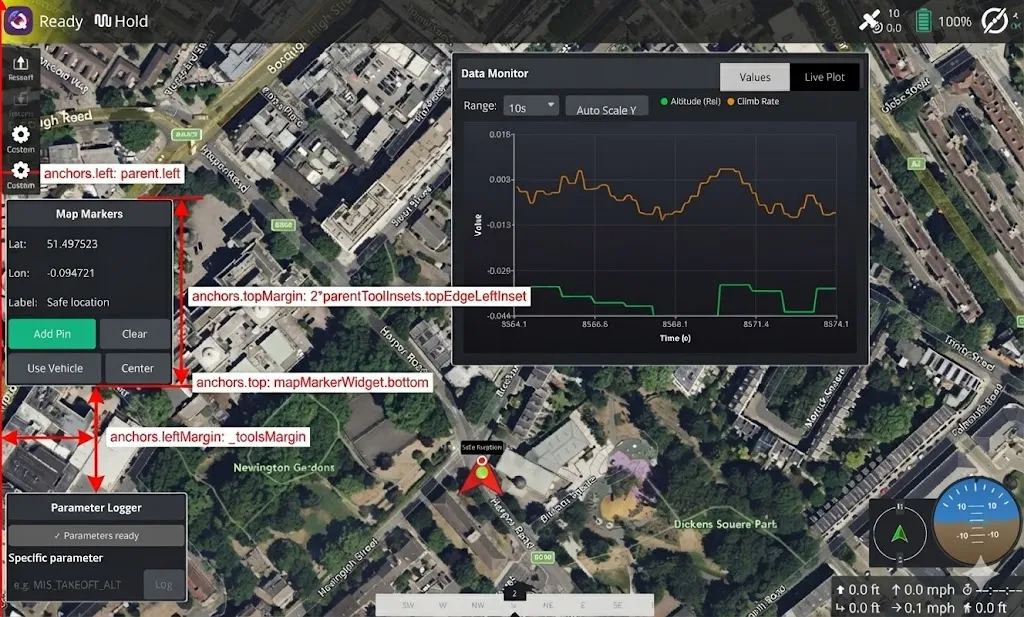
For the parameter widget, add the following code block that defines the bottom left positioning in the FlyView UI.
CustomParameterWidget {    id: paramWidget    visible: true
    anchors.left: parent.left    anchors.top: mapMarkerWidget.bottom    anchors.leftMargin: _toolsMargin    anchors.topMargin: 2*parentToolInsets.topEdgeLeftInset
    property real leftEdgeCenterInset: visible ? x + width : 0}
Logic
CustomVehicleParamWidget.qml
Create a new qml file in qgroundcontrol/custom/res/Custom/Widgets folder. Here we define the widget UI and logic for accessing the parameters. When working with large codebase such as QGC, I found
codewiki3 quiet powerful to search through codebase and quickly find the required classes and dependencies.
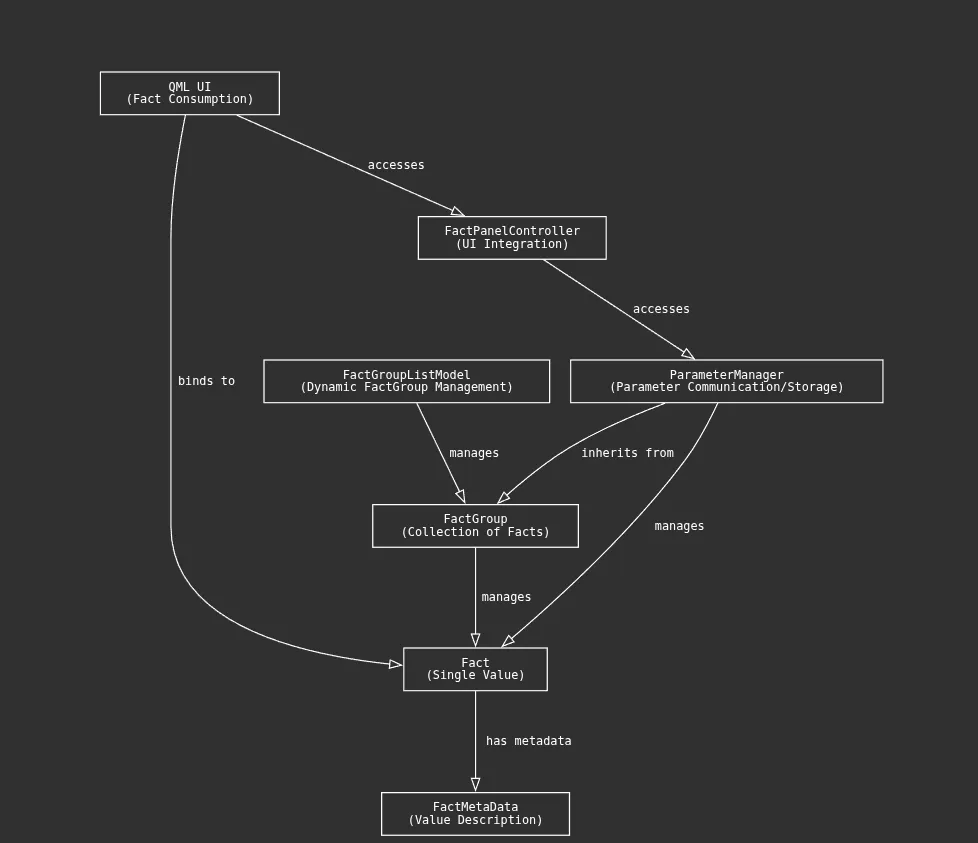
In QGroundControl, all parameters and settings are handled as “Facts.” A Fact is a smart wrapper around a value that also knows what the value means, how it should be displayed, and how it can be edited.
Facts are built to work directly with QML:
- UI elements bind directly to Fact values
- Changes update automatically
- Sliders, dropdowns, and text fields validate themselves
Related parameters are organized into FactGroups, and dynamic sets use FactGroupWithId.
The logSingleParameter() function demonstrates how to retrieve and inspect a parameter as a Fact.
- ParameterManager - handles loading and writing parameters to the vehicle over MAVLink
- FactPanelController - the main bridge for widgets, allowing QML code to safely access Facts
- SettingsFact - stores application settings persistently
function logSingleParameter(paramName) {    var fact = null    var foundComponent = -1
    if (factPanelController.parameterExists(-1, paramName)) {        fact = factPanelController.getParameterFact(-1, paramName, false)        foundComponent = -1    } else {        var compIds = parameterManager.componentIds()        for (var i = 0; i < compIds.length; i++) {            if (factPanelController.parameterExists(compIds[i], paramName)) {                fact = factPanelController.getParameterFact(compIds[i], paramName, false)                foundComponent = compIds[i]                break            }        }    }
    if (!fact) {        console.log(paramName, "not found")        return    }
Facts maintain both raw (internal storage format) and cooked (user-friendly display format) representations of values. String versions with full precision and display formatting are also available for UI presentation.
console.log("✓", paramName, "(component", foundComponent + ")")console.log(" Name:", fact.name)console.log(" Short Description:", fact.shortDescription)console.log(" Type:", fact.type)console.log(" Raw Value:", fact.rawValue)console.log(" Cooked Value:", fact.value)For parameters with predefined options, Facts provide lists of human-readable labels and their corresponding numeric values. Enums represent single-selection choices, while bitmasks allow multiple flags to be set simultaneously.
if (fact.enumStrings.length > 0) { console.log(" Enum Strings:", fact.enumStrings) console.log(" Enum Values:", fact.enumValues)} else if (fact.bitmaskStrings.length > 0) { console.log(" Bitmask Strings:", fact.bitmaskStrings)}// Validation constraintsconsole.log(" Min:", fact.min, "Max:", fact.max)console.log(" Units:", fact.units)console.log(" Decimal Places:", fact.decimalPlaces)
// Default value infoif (fact.defaultValueAvailable) { console.log(" Default Value:", fact.defaultValue) console.log(" Value Equals Default:", fact.valueEqualsDefault)}Behavioral Flags:These flags control how parameters behave in the UI and system. They indicate access permissions (read-only/write-only), whether values may change automatically, and if modifications require restarting the vehicle or QGC application.
console.log(" Read Only:", fact.readOnly) console.log(" Vehicle Reboot Required:", fact.vehicleRebootRequired)}Build
Add the newly created qml widget to the cmakelist and rebuild the application.
${CMAKE_CURRENT_SOURCE_DIR}/res/Custom/Widgets/CustomParameterWidget.qmlTesting with SITL simulation
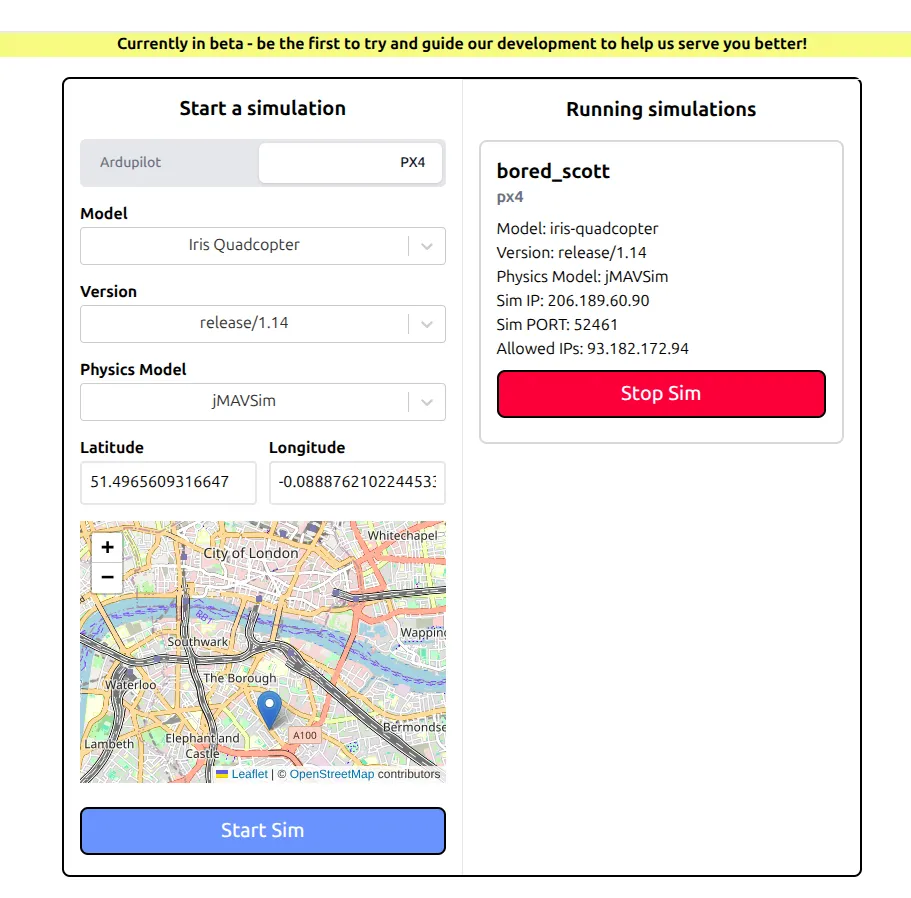
If you have a local PX4 simulation running, you can connect it to QGroundControl. Alternatively you can use the PX4 cloud simulation available on dronesim4 with the following settings:
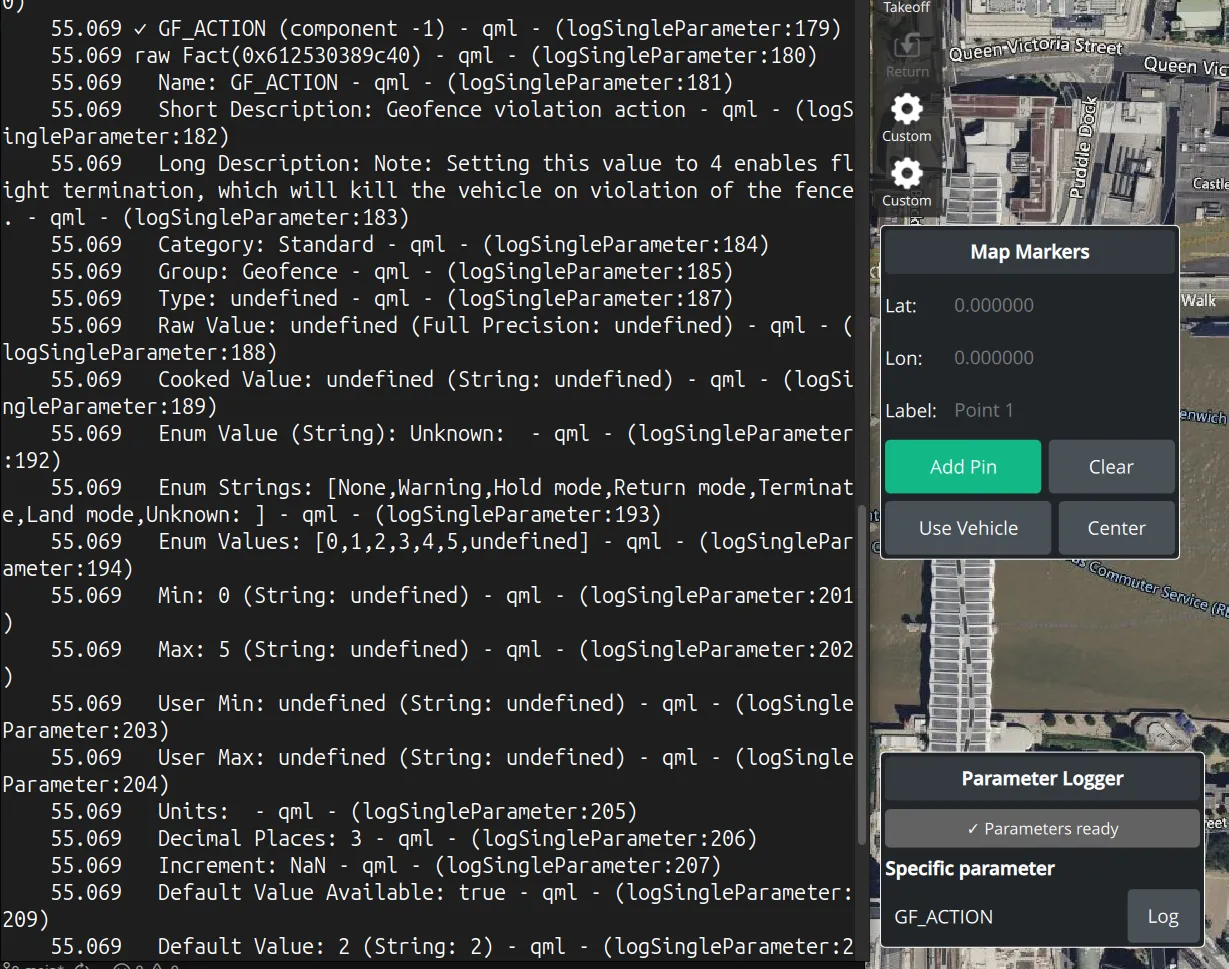
When the “GF_ACTION” parameter is queried, the following output is shown in the console.
My custom plugin repository (https://github.com/rohith8272/QGC-plugin-template) contains other examples such as mavlink data plotting and map interactions.
Footnotes
-
QGroundControl, https://qgroundcontrol.com/ ↩
-
https://docs.qgroundcontrol.com/master/en/qgc-dev-guide/getting_started/container.html ↩
-
QGC on codewiki, (https://codewiki.google/github.com/mavlink/qgroundcontrol) ↩
-
DroneSim Project,(https://dronesim.xyz) ↩